
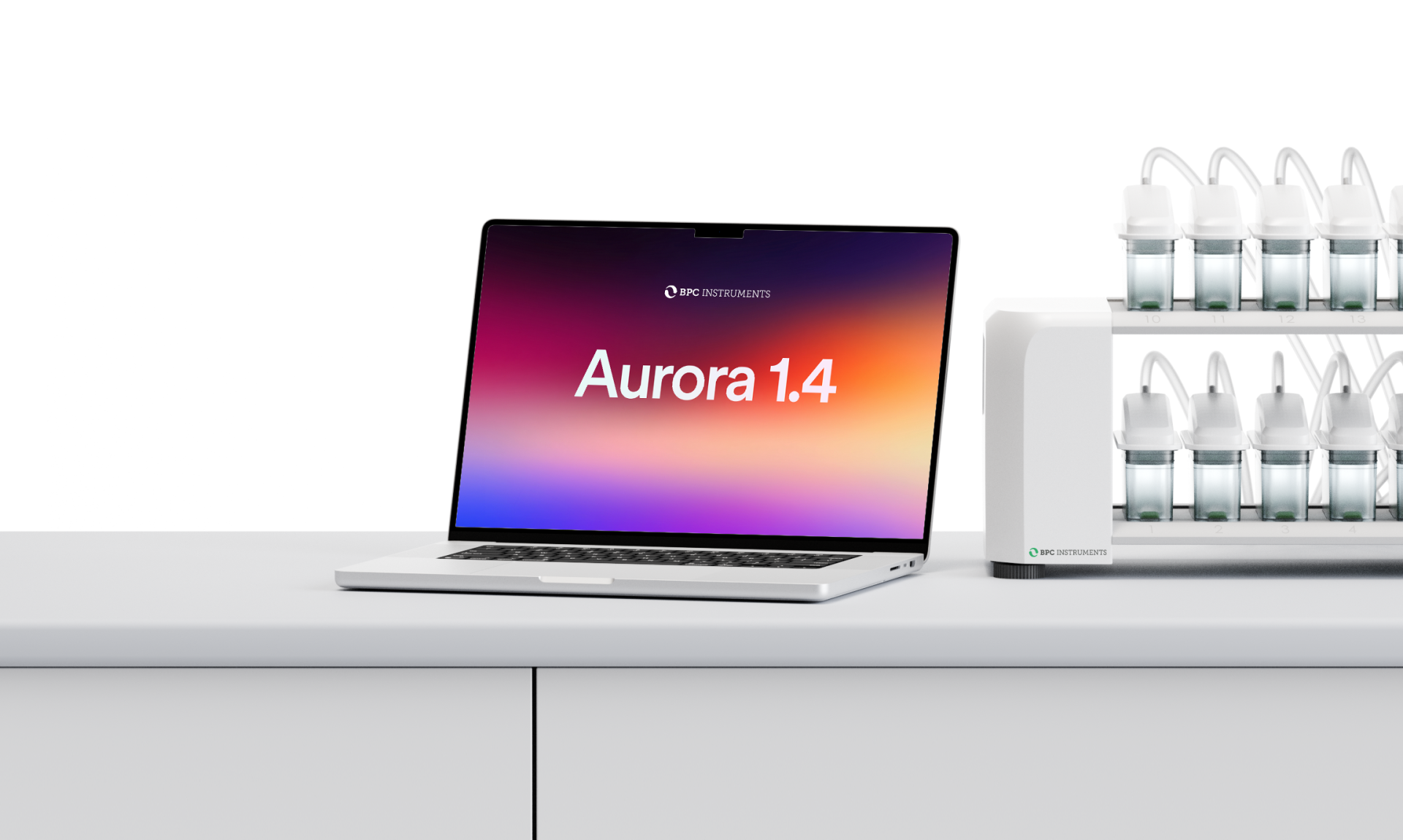
We're thrilled to release the latest update to our software – Aurora 1.4!
Now available as a free update for every BPC Instruments system running our software. It adds real-time BMP calculations for all AMPTS® III models. An open API, nine interface languages and improved use on phones and tablets bring new capabilities across the wider Aurora™ platform.
Follow live BMP results
Users of AMPTS® III and AMPTS® III Light, including DUO configurations, can now create sample groups directly in the experiment view. Aurora™ calculates the biochemical methane potential as new measurements arrive, so you can follow and compare samples before the experiment is complete. The calculated values are also included in generated reports.
Connect Aurora™ with your other systems
The new open API allows Aurora™ to integrate seamlessly with existing systems and applications. It provides direct access to current and historical instrument data, which can be used for automated workflows, custom dashboards or connections to laboratory information management systems.
Work in your preferred language
Aurora™ is now available in Chinese, English, French, German, Italian, Japanese, Portuguese, Spanish and Swedish. The responsive interface has also been improved, making it easier to check experiments from a phone or tablet.
Download Aurora™ 1.4
The update is free for all instruments running Aurora™ and must be installed manually.
Visit the Customer Resources page in BPC Academy to download Aurora™ 1.4 and the installation instructions. You will also find the API documentation there.
If you need help with the update, please contact your BPC Instruments technical expert or our support team.
Important Notice!
Copyright © BPC Instruments AB (publ) 2026